
Completing Checklist Training Template
Completing ASM and Front Desk Checklists
Checklists will now be scheduled automatically via Action Card under the "Checklists" heading on your dashboard. Each weekday, the system will activate the inspection at 9:00am and it must be completed by 6:00 or 7:00 depending upon the checklist, the system will deactivate the checklist for the day and it will be marked incomplete
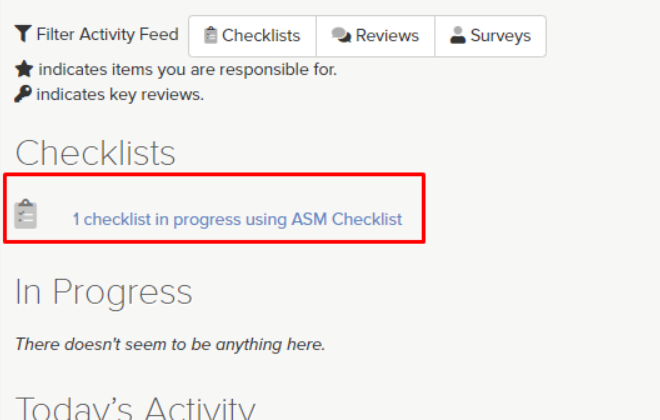
Click on the activated checklist link from the dashboard during the scheduled time frame to complete your checklist. All questions will now be in a simpler one-page layout.
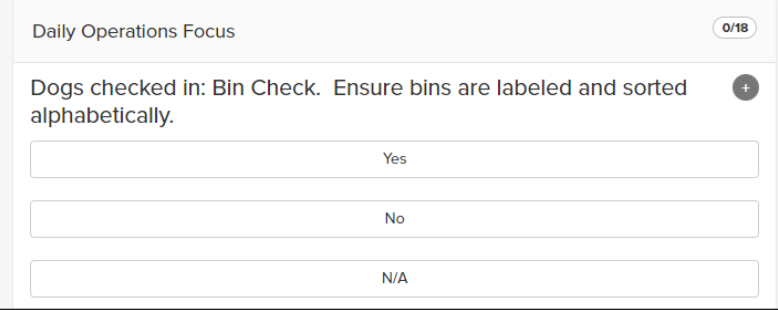
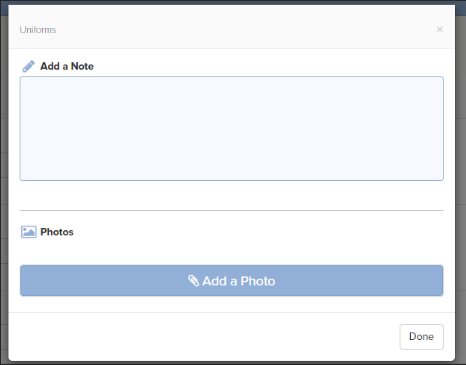
The + button allows for notes and files or photos to be added. Any questions indicated with a paperclip require a photo to be added. After answering all questions in a category, the completed category will be automatically moved to the bottom of your window (if more than 1 category).
With all questions answered, the checklist will be completed by submitting the checklist via the "Actions" menu. See below example from Action Card:
